Tips for Better Organizing Your Shopify Orders
Tips for better organizing your Shopify orders: tag systems, saved views, Shopify Flow automation, bulk actions, and safe holds for risky orders.

Talal Emran
Web Developer & Designer
Published
10 min read
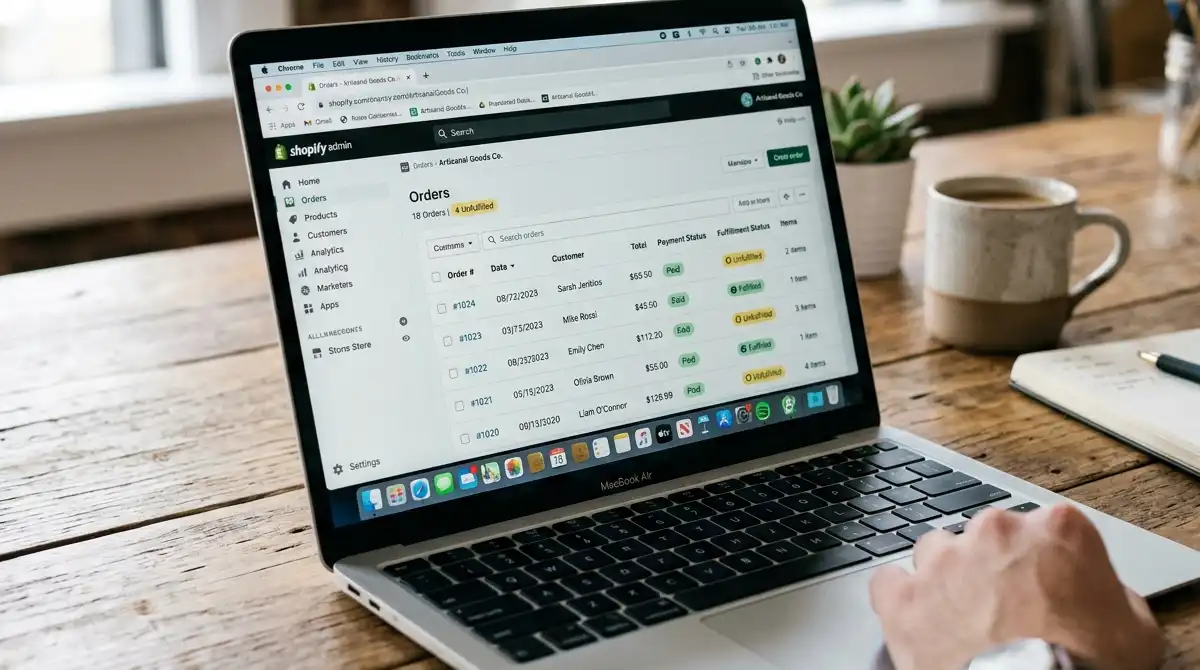
Order chaos rarely announces itself. It shows up as a weekend backlog that nobody noticed until Monday, a VIP order buried in a list of two hundred, a pre-order that shipped before stock arrived, or a risky order that reached your warehouse before anyone looked at it. Shopify’s order management comes down to four built-in tools that handle most of this: saved views, order tags, bulk actions, and Shopify Flow automations. The skill is in how you combine them.
This guide covers how to set up those tools so your orders organize themselves as far as possible. It focuses on the practical rules that keep a growing order queue manageable: a consistent tag system, a view for each workflow, automation that tags instead of acting recklessly, and a clear point at which you’ve outgrown the built-in tools.
How We Evaluated This Guide
This guide draws on Shopify’s developer documentation and changelog plus several 2026 how-to guides, some of them from automation-app vendors such as MESA, which have a commercial interest in selling more automation. We flag those where they affect a claim. We haven’t run these workflows in a live store, and Shopify’s admin interface changes often, so menu names and plan availability may differ from what you see. Check each feature against your own admin before relying on it.
Start With the Daily Workflow
Shopify frames order management as a sequence: receive the order, verify it, fulfill it, track it, and close it. Everything else on the Orders page, including filters, tags, and bulk actions, sits on top of that sequence. Organizing your orders means making each stage visible so nothing waits unnoticed.
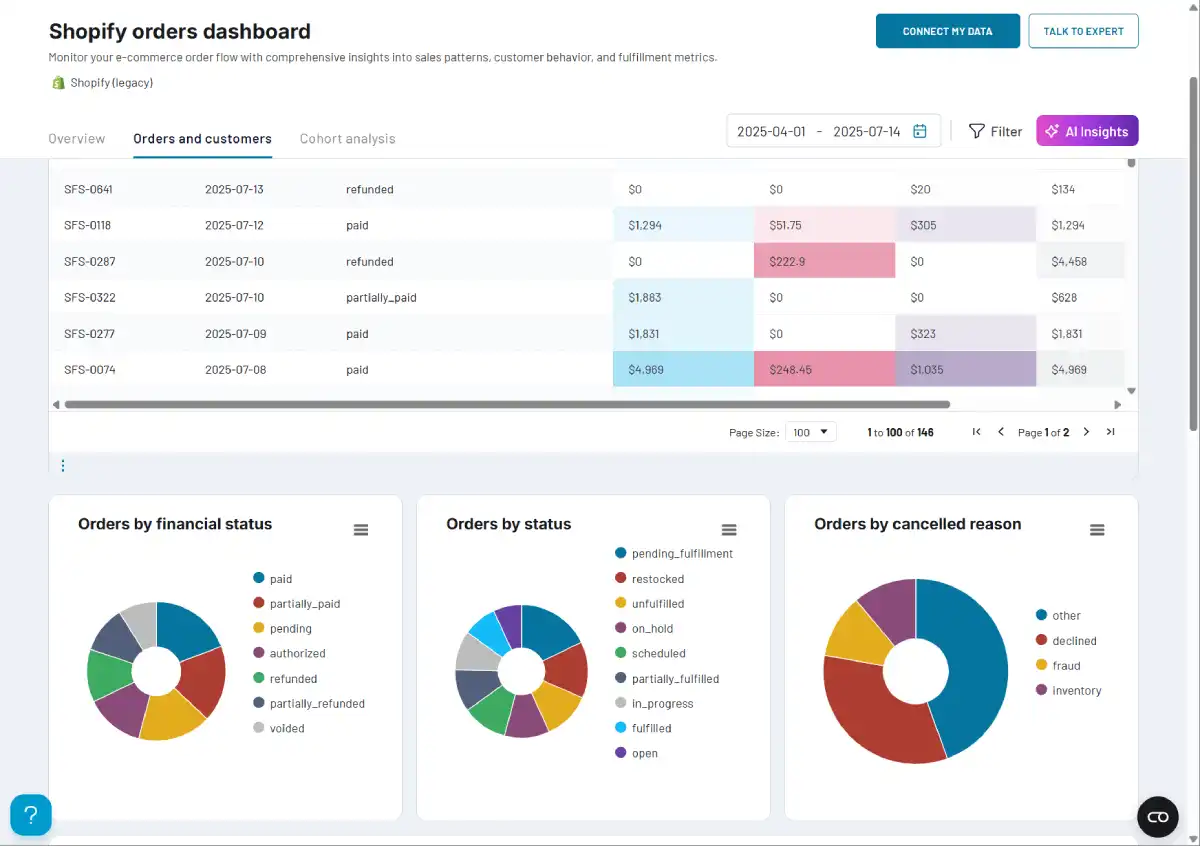
One 2026 guide summarizes what still works at modest volumes: saved views, order tags, bulk label purchase, and Flow automations. The common failure at that scale is fulfillment lag, where orders sit unfulfilled over weekends and holidays. That’s a visibility problem, and visibility is what the tips below fix.
Tip One: Build a Tag System Before You Need One
Tags are the foundation. A tag turns an ad-hoc judgment, such as “this one needs special handling,” into something you can filter, count, and automate. A tag added at order creation can trigger a fulfillment route, control which notifications fire, segment the order in your reporting, and shape how customer records are updated.
The risk is tag sprawl. A store that adds tags on the fly ends up with dozens of inconsistent labels that nobody can filter reliably. Decide on a small vocabulary and a naming pattern up front. One workable approach is a prefix plus a value:
| Tag type | Example tags | Purpose |
|---|---|---|
| Source | Source-web, Source-pos | Which channel the order came from |
| Priority | Rush-Order, VIP | Orders needing faster handling |
| Hold | Hold-risk, Hold-preorder | Orders that must not ship yet |
| Route | B2B-Order, Wholesale, Intl | Where or how the order is fulfilled |
Shopify Flow examples from automation providers use patterns very much like these, including a source tag built from the order’s channel name and rush tags for priority orders. Keep the list short, write the conventions down, and make every team member use them.
Best for stores whose tags have grown messy: audit your existing tags, merge duplicates, and adopt one naming pattern before adding any automation, since automation multiplies whatever system you already have.
Tip Two: Use Saved Views to Give Every Workflow Its Own Queue
A saved view is a stored filter on the Orders page. Instead of everyone scrolling the same long list, you build one view per job: unfulfilled and paid, high-risk awaiting review, international orders, pre-orders on hold, and B2B orders.
Saved views also let you give each team member their own queue. Packers see only what’s ready to ship, support sees orders flagged for review, and you see the exceptions. This is where good tags pay off, because views filter on them.
A recent Shopify developer changelog item adds another option: order metafield definitions and values can be used as filters in the admin. If you store order-level data in metafields, such as a delivery window or a gift flag, you can filter on it directly instead of encoding everything in tags.
Best for teams of two or more: create one saved view per role so nobody has to remember which filters to apply each morning.
Tip Three: Automate Tagging With Shopify Flow
Shopify Flow is Shopify’s free automation app. For order work, three automations are commonly described as paying off fastest: tagging orders by value or destination, holding high-risk orders for review, and firing internal alerts on status changes.
Useful starter workflows from current guides include:
- High-value orders: when an order total passes a threshold, add a
VIPorHigh-valuetag to both the order and the customer. - Channel tagging: when an order is created, add a tag based on its source so you can segment reporting.
- B2B routing: when an order comes from a company account, add
B2B-OrderandWholesaletags and a note naming the company and location. - Rush orders: when shipping method or a customer tag indicates priority, add
Rush-Orderso it surfaces in the queue.
“A rule that has never fired in production is not an automation, it is a hypothesis.” — Qualimero, Shopify order management guide
That quote supports a practical rule: test your workflows with real orders before peak season, not during it.
A note on availability: sources disagree about which plans include Flow. One older guide says Flow is included on all plans except Basic, while a more recent source says Flow automations are included across Basic, Grow, Advanced, and Plus as of April 2026. Check what your own plan includes.
Tip Four: Tag and Hold Instead of Taking Irreversible Actions
The safest automation habit is to prefer tags over actions you can’t undo. Tags are easy to remove. A shipped order isn’t.
Two holds are worth building:
- Risk holds. When Shopify flags an order as high risk, have a workflow tag it and hold fulfillment until someone confirms the payment is legitimate. One vendor guide warns that for stores processing 100 or more orders a day, discovering a fraudulent order after it has already gone to your 3PL is costly, so the check should happen before fulfillment.
- Pre-order holds. When an order contains a pre-order or backordered product, add a hold tag and skip auto-fulfillment so it doesn’t ship before stock arrives.
Keep conditions specific. A trigger of “order created” with no condition fires on everything, so always pair broad triggers with tight conditions so a rule acts only on the orders you mean. When unsure, have the workflow tag an order for human review instead of fulfilling it automatically.
Best for stores new to automation: start with tag-only workflows for a few weeks, watch what they catch, then add holds and routing once you trust the rules.

Tip Five: Use Bulk Actions for Repetitive Work
Bulk actions collapse repetitive tasks, such as buying labels for fifty orders, into one operation. Shopify’s developer documentation lists batch fulfillment, mass invoice generation, bulk status updates, and exporting order data to accounting systems among the bulk use cases that apps and extensions can support.
The pattern is simple: filter to the right saved view, select the orders, and act on the group. This works best when your views and tags are clean, since you want to be confident the selected set contains exactly the orders you intend.
Best for high-volume days: batch your fulfillment work by saved view instead of handling orders one at a time, and reserve individual attention for tagged exceptions.
Tip Six: Backfill and Clean Up Retroactively
Organization problems often live in your past orders. If you create a new tag, such as Intl for international orders, your saved views and exports will miss everything from before the rule existed. Some workflow tools can run rules retroactively on past orders, which lets you backfill tags so your reports and filters cover your full history.
The same approach helps when you change processes, such as switching suppliers or reorganizing warehouses: retroactive routing tags let you re-segment historical orders without touching each one by hand.
Tip Seven: Know When You’ve Outgrown the Built-In Tools
Shopify’s native tools cover consolidation across Shopify channels and connected marketplaces, plus saved views, tags, and bulk label purchase. Flow can act on orders already in Shopify but doesn’t consolidate orders from outside it. When you need to pull in channels Shopify doesn’t connect natively, reconcile against finance systems, or run multi-step workflows with branching logic and external alerts, a dedicated order management app or an ERP-integrated system becomes worth considering.
One vendor guide notes that Flow handles basic single-condition tagging and notifications, while multi-step workflows such as flagging an order, alerting a channel, logging it to a spreadsheet, and pausing 3PL sync require more capable automation tools. That comes from an automation vendor with a stake in the answer, so treat the boundary as approximate.
Best for stores feeling friction despite clean tags and views: write down the specific task the built-in tools can’t do before shopping for an app, so you’re solving a real gap and not adding complexity.
Where This Guide Falls Short
A few honest limitations apply.
- Interface and plan details change. Shopify updates its admin often, and sources disagree on Flow’s plan availability, so verify features in your own store.
- Several sources are vendors. Automation-app providers have an incentive to emphasize the limits of built-in tools, so weigh their “you need an app” advice against your actual needs.
- No hands-on test. We haven’t run these workflows in a live store, so treat the examples as patterns to adapt, not exact click paths.
- Volume changes the answer. A store shipping a few orders a day needs only tags and views, while one handling hundreds benefits from automation and possibly a dedicated system.
The Bottom Line
Organizing Shopify orders comes down to making the order queue visible and routing exceptions automatically. Build a small, consistent tag vocabulary, create a saved view for each workflow, let Flow add the tags, hold risky and pre-order items with tags instead of irreversible actions, batch repetitive work with bulk actions, and backfill your history so your reports are complete. Add a dedicated order management app only when you can name the gap the built-in tools leave.
FAQ
What’s the best way to organize Shopify orders?
Combine a consistent tag system with saved views and Shopify Flow automation, so orders are labeled automatically and each workflow has its own filtered queue.
What should I tag orders with?
Use a small, consistent set grouped by purpose: source, priority, hold, and routing, with a naming pattern such as a prefix plus value, and write the conventions down.
Is Shopify Flow free?
Flow is Shopify’s free automation app, but sources disagree on which plans include it, so check your own plan in the admin.
How do I stop risky or pre-order items from shipping too early?
Use a workflow that tags the order and holds fulfillment until someone approves it, preferring tags over irreversible actions like automatic fulfillment.
When do I need an order management app?
When you need to consolidate orders from channels Shopify doesn’t connect natively, reconcile against finance systems, or run multi-step workflows the built-in tools can’t handle.