Submagic Complete Guide: Features, Pricing, and Fit
A complete Submagic guide for 2026: AI captions, B-roll, Magic Clips, plan pricing and limits, who it suits, and when to choose an alternative.

Talal Emran
Web Developer & Designer
Published
9 min read
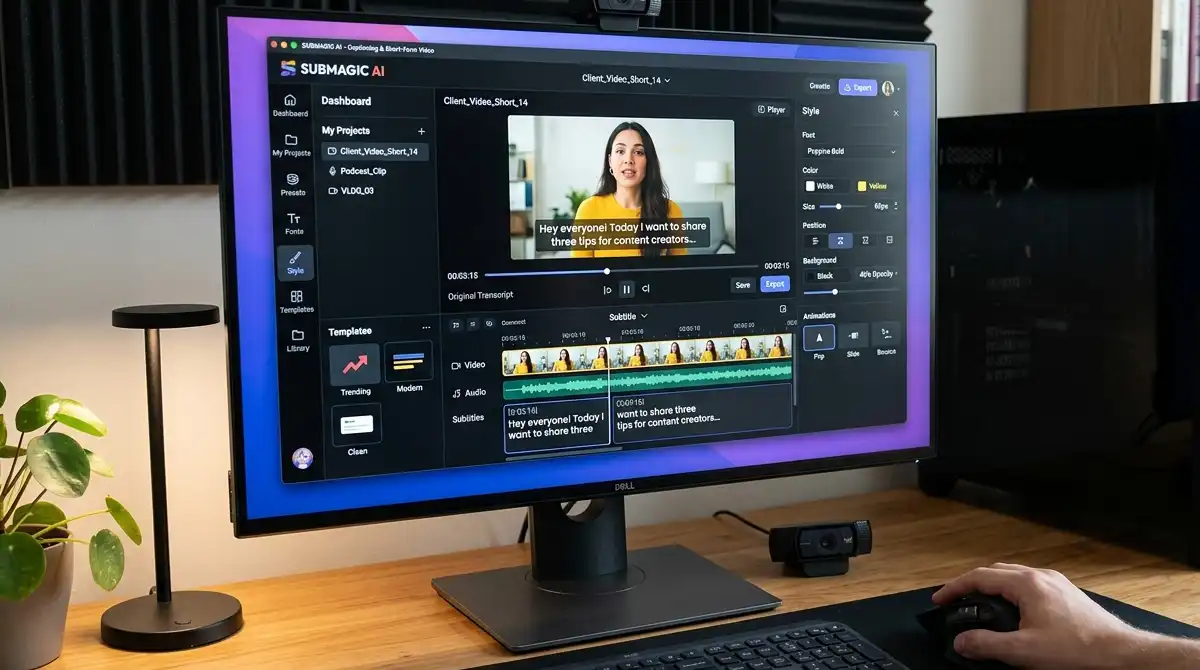
Submagic is built around one observation about short-form video: most of the editing time goes to the same repetitive jobs. Typing captions, cutting dead air, adding B-roll, and styling text take longer than the filming itself. Submagic automates those jobs in a single web editor so a talking-head clip becomes a captioned, polished short in minutes. Whether that’s worth paying for depends almost entirely on how much short-form video you publish.
This guide covers what Submagic does, how its plans actually break down, where it works well, and where it falls short. It also covers when an alternative makes more sense, so you can decide without relying on a vendor’s own pitch.
How We Evaluated This Guide
This guide is based on published reviews, pricing aggregators, and comparison pages, not on a hands-on test of the product. Many of those sources are affiliate or competitor sites with a commercial stake, and ratings across them range from 4.4 to 4.8 out of 5, so we treat them as signals, not verdicts. Submagic’s plans and features have also changed repeatedly: sources disagree on whether there’s a permanent free plan and on how many languages it supports. We flag those conflicts and tell you what to verify on Submagic’s own pricing page.
What Submagic Does
Submagic is a web-based AI video editor for short-form formats such as TikTok, Instagram Reels, YouTube Shorts, Facebook, and LinkedIn. Its core job is turning raw footage into publish-ready clips with animated captions, B-roll, zooms, and cleanup applied automatically.
Reviews describe it as built around a handful of workflows:
- Caption generation: automatic, animated subtitles in customizable styles.
- AI edit pass: removal of silences and filler words, audio cleanup, auto-zoom, and transitions.
- AI B-roll: contextual stock footage, images, and GIFs inserted to match what you’re saying.
- Magic Clips: extraction of short clips from longer recordings, such as podcasts, streams, and interviews.
- Extras: AI-generated hook titles, descriptions, brand kits, and, per one review, an AI avatar video generator.
One review sums up the strength as the combination of captions, B-roll, zooms, cleanup, and repurposing inside one social-first workflow, rather than any single feature.
How the Workflow Works
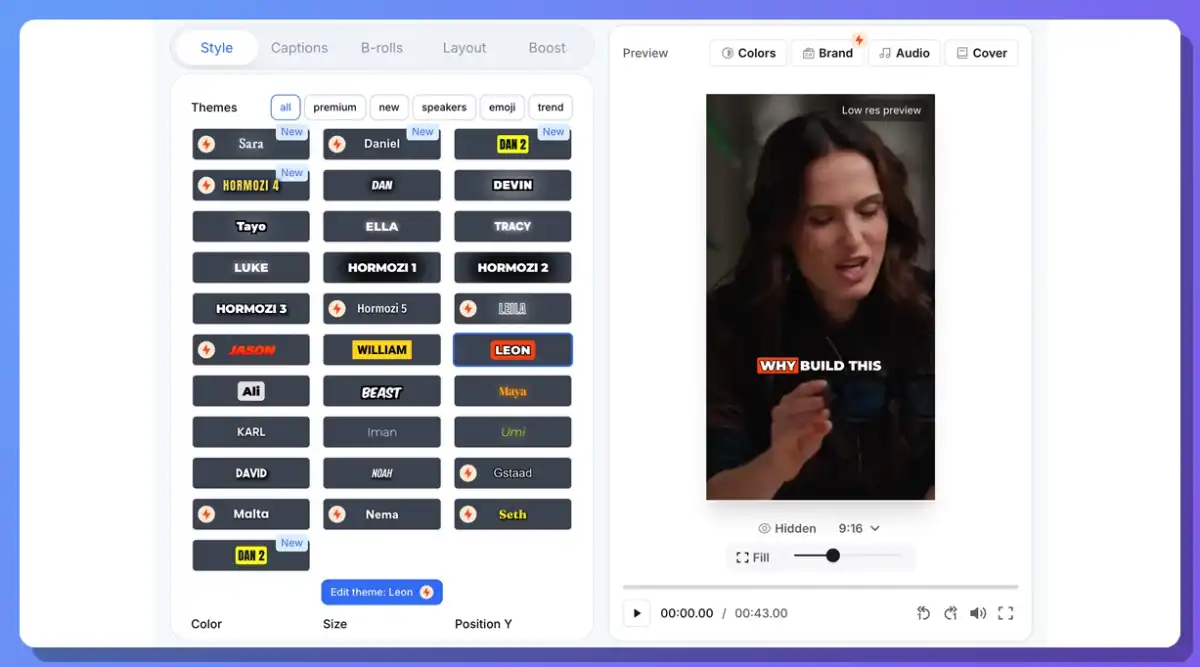
The typical flow is short. You upload footage, the tool transcribes it and generates captions, you pick a caption style, apply the automatic edit pass to trim pauses and fillers, add or approve B-roll, and export, with some plans supporting direct publishing to social platforms. For long recordings, Magic Clips can find candidate highlights and turn them into separate shorts.
Reviews are consistent on one caution: automated edits still need human review before publishing. AI captions can mishear names and jargon, and automatic B-roll can miss the point of a sentence, so a quick pass through the result is part of the process.
Pricing and Plans
The paid structure is consistent across most sources: three tiers, billed monthly or annually, with annual billing roughly 40% cheaper.
| Plan | Monthly | Annual (per month) | Videos per month | Max length | Notable limits and features |
|---|---|---|---|---|---|
| Starter | $19 | $12 | 15 | 2 minutes | 1080p, no watermark, AI auto-captions, 3 AI credits |
| Pro | $39 | $23 | 40 | 5 minutes | Up to 2K, premium B-roll, 6 AI credits |
| Business + API | $69 | $41 | 100 | 30 minutes | Up to 4K, 15 AI credits, API access |
Magic Clips is sold as an add-on, listed at between $12 and $19 per month depending on the source, so check the current price if repurposing long videos is your main use.
Note the conflicts between sources. Older reviews report different video counts and tier names, and one lists a Business plan with 300 exports and team seats, so plan limits have clearly shifted over time. The most recent source we found, dated this month, reports a permanent free plan with 3 videos a month, a 1-minute cap, and a watermark, while an older source says there’s no free plan at all. Treat the free tier as likely but unconfirmed until you check the pricing page.
Credits matter as much as video counts. Heavier AI features draw from a monthly credit pool, so the per-tier credit allowance can limit you before the video limit does.
Best for deciding whether to pay: one review’s rule of thumb is that Submagic is worth paying for if you post 15 or more short-form videos a month, and another suggests the math works if you publish four or more a week and would otherwise spend 30-plus minutes editing each one.
Where Submagic Is Strongest
Caption quality and style. Captions are the headline feature. Reviewers point to customizable animated templates that look like what top creators use, along with support for many languages. Language counts are reported inconsistently: most sources say 48, while a newer review says the product advertises 123 languages, which suggests expansion. Verify the languages you need.
Speed on repetitive edits. Silence removal, filler cleanup, auto-zoom, and B-roll compress what’s usually a manual process. One review frames the value as reducing a 1-to-2-hour manual edit per video to minutes, though that figure is a vendor-friendly estimate.
Agency and team features. On higher plans, brand kits that apply a client’s logo, fonts, and colors automatically, multi-seat plans, and project folders make it practical for teams producing for several brands.
A one-stop social-first workflow. For creators who don’t want to learn a timeline editor, having captioning, editing, and exporting in one place is the main draw.
Where It Falls Short
It’s not a full video editor. Reviews agree that Submagic isn’t a replacement for professional editing software when you need complex long-form editing or fine control.
Length caps on lower tiers. Starter’s 2-minute limit and Free’s even shorter cap mean longer videos require Pro or higher.
Generic AI B-roll. Automatic B-roll draws on stock footage and can feel generic, so you’ll sometimes swap clips by hand.

Caption sameness. Template-driven captions can make different creators’ videos look alike. Customizing fonts, colors, and positions helps you stand out.
Cost relative to need. Several reviewers say the pricing takes some justification, and that people who only need captions or post fewer than about 10 videos a month may not get enough value.
Accuracy still needs checking. Fine-tuning is sometimes needed for accuracy, which is why a human review step belongs in your workflow.
Who Should Use It
Submagic fits best if you:
- Post short-form video frequently, ideally 15 or more clips a month.
- Record talking-head or spoken content where captions carry much of the message.
- Don’t want to learn a timeline editor and prefer templates and automation.
- Run an agency or team that benefits from brand kits and multiple seats.
- Repurpose long recordings, such as podcasts or webinars, into shorts and are willing to pay for the add-on.
Who Should Skip It
Look elsewhere if you:
- Post only occasionally. Pay-per-use alternatives may cost less than a monthly subscription.
- Only need captions. A cheaper captioning-only tool may be enough.
- Need complex editing or cinematic effects. A traditional editor is a better fit.
- Mainly want long-to-short clipping. One comparison notes tools like Opus Clip are built around AI clipping of long video into ranked shorts, while Submagic is caption-first with clipping as an add-on.
Alternatives Worth Knowing
Comparisons mention a few categories of alternatives. Opus Clip leads with long-form clipping, so podcasters and streamers who mainly repurpose may prefer it. Pay-per-use tools exist for occasional users: one vendor lists $9 for 20 one-minute clips and $29 for 80, with no monthly commitment, though that comes from a competitor’s own comparison. Other tools target faceless or fully automated video, which Submagic isn’t designed for. Match the tool to your main job: captions and polish, clipping, or automation.
Tips for Getting the Most From It
- Record clean audio. Captions and filler removal depend on transcription quality, so good sound reduces corrections.
- Review every caption. Check names, product terms, and jargon before exporting.
- Customize your template. Adjust fonts, colors, and placement so your videos don’t look like everyone else’s.
- Replace weak B-roll. Keep what fits and swap anything generic.
- Batch your work. Process several clips in one sitting, since the savings add up with volume.
- Start on a lower tier. Test with a month of real content, watch your credit use, and upgrade only if you hit limits.
Where This Guide Falls Short
A few honest limitations apply.
- No hands-on testing. Everything here comes from published reviews, so interface details and recent changes may differ from what we describe.
- Pricing and plan limits conflict across sources. Video counts, free-plan status, and add-on prices differ, so confirm on the official pricing page before buying.
- Many sources are commercial. Affiliate sites and competitors dominate the review landscape, so ratings and savings claims are directional.
- Time-saving claims are estimates. Figures like “10 hours a week saved” come from vendor-adjacent sources and depend on your workflow.
The Bottom Line
Submagic is a strong choice for creators and small teams who publish short-form video frequently and want captions, B-roll, and cleanup handled in one social-first tool. It’s a weaker choice for occasional posters, caption-only needs, complex editing, or anyone mainly repurposing long recordings. The clearest decision rule from the reviews is volume: if you post around 15 or more shorts a month, the time savings plausibly outweigh the subscription. Start on the lowest plan, review everything the AI produces, and judge it on how much editing time it actually gives back.
FAQ
What is Submagic used for?
It’s an AI video editor for short-form video that adds animated captions, B-roll, zooms, and cleanup, and can turn long recordings into short clips with its Magic Clips feature.
How much does Submagic cost?
Paid plans run $19, $39, and $69 per month on monthly billing, or roughly $12, $23, and $41 per month billed annually, with Magic Clips sold as an add-on.
Does Submagic have a free plan?
Sources disagree. The most recent one lists a free plan with 3 videos a month and a watermark, while an older one says there’s no free plan, so check the pricing page.
Is Submagic worth it?
Reviews suggest it’s worth paying for if you post about 15 or more short-form videos a month and spend meaningful time on captions and editing, and less so if you post rarely.
Can Submagic replace a professional video editor?
No. Reviews agree it’s best for short-form social video and not a substitute for software built for complex or long-form editing.